ERP Enablement
This section describes the ERP enablement procedure.
App Registration
To set up Auth 2.0 for Microsoft Business Central SAAS tenat environment, follow these steps:
-
Log in to the Azure portal using your Business Central login credentials.
-
Search for App Registrations and click New Registration.

-
Provide the required value in the Name field.
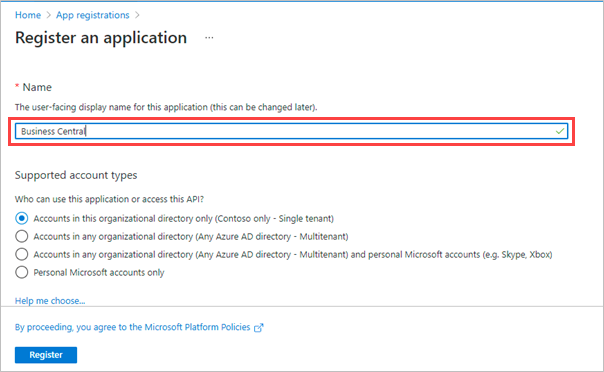
-
Select the required option for the application access. For example, the first option is selected in the following example.
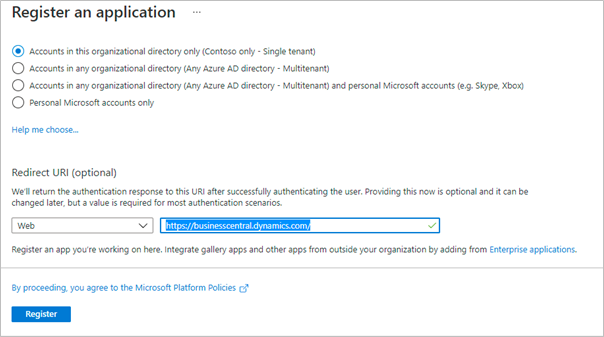
-
Provide a URL in Redirect URL field and click Register.
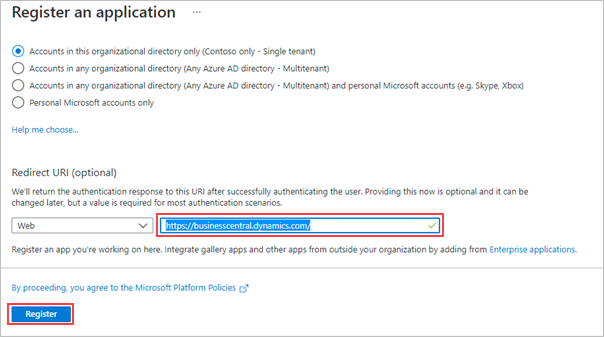
Adding Permissions
To add permissions, follow these steps:
-
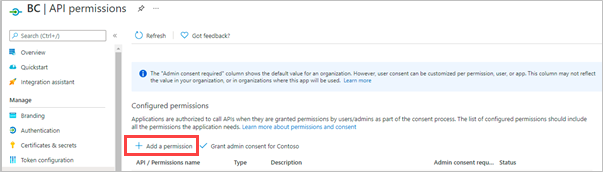
Navigate to API Permissions.
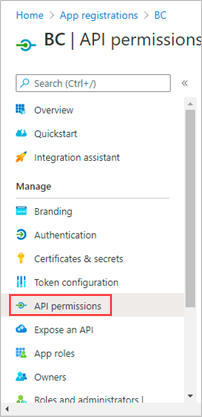
-
Click Add a permission.
-
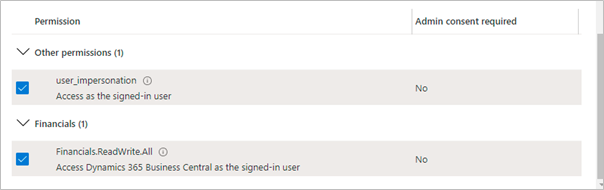
Select Business Central and click Delegated Permissions.
-
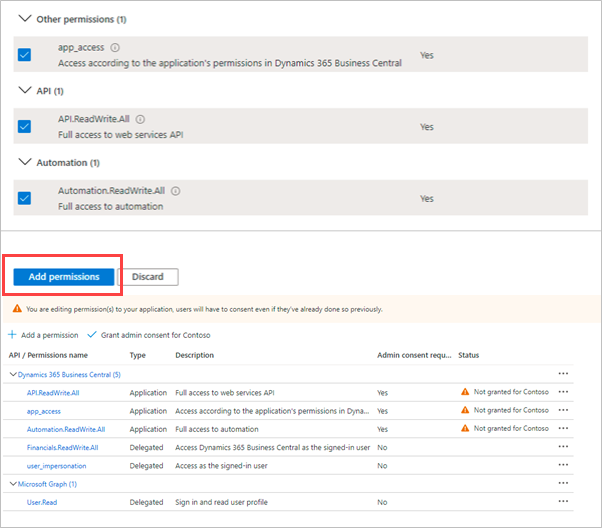
Ensure that all the check boxes are selected (Boolean TRUE).
-
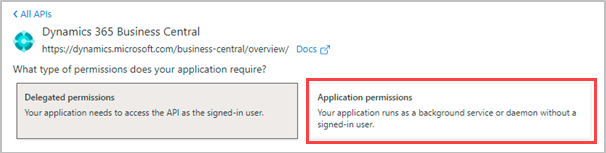
Click Application Permissions tile.
-
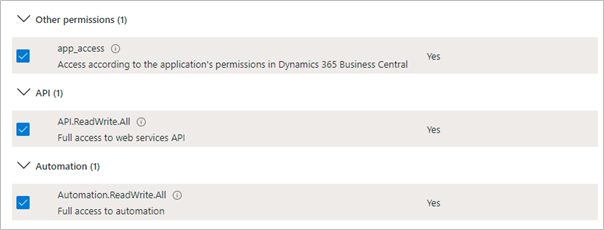
Select all entries (Boolean TRUE).
-
Click Add permissions.
Granting Consent
To grant consent, follow these steps:
-
Click Grant admin consent to Contoso.
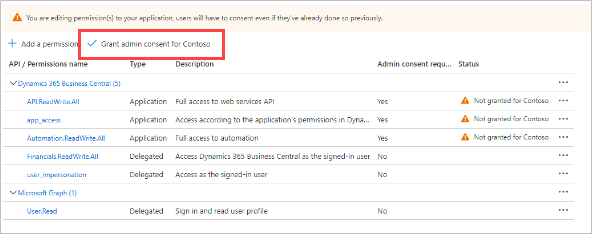
A pop-up message is displayed.

-
Click Yes.
-
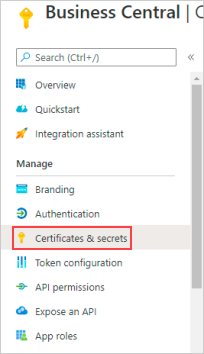
Navigate to Certificates & secrets.
-
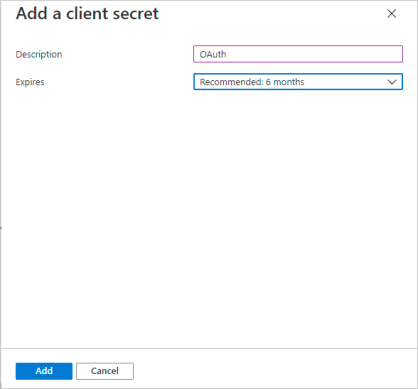
Click New client secret.
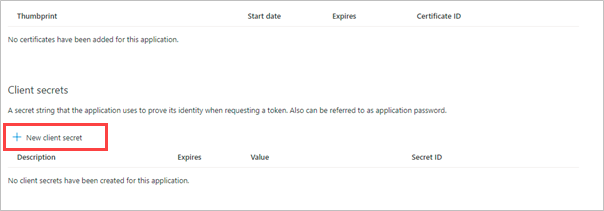
The Add a client secret screen is displayed.
-
Click Add to generate a client secret.
-
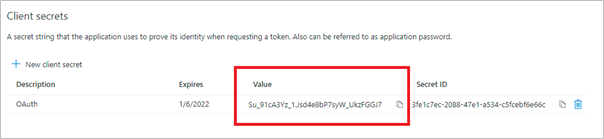
Copy the client secret generated under Value field in the Client secrets screen.

Note
This value is masked later and required in POSTMAN.
-
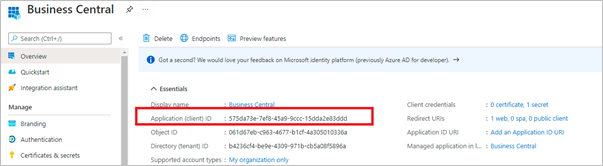
Navigate to Overview and note the Application (client) ID to be used in POSTMAN.
-
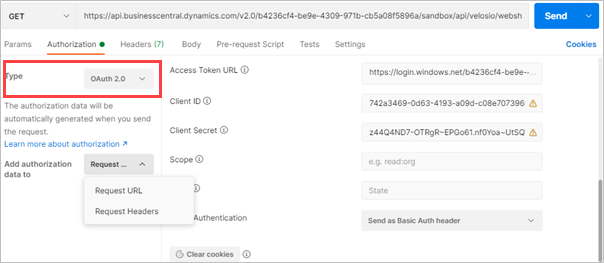
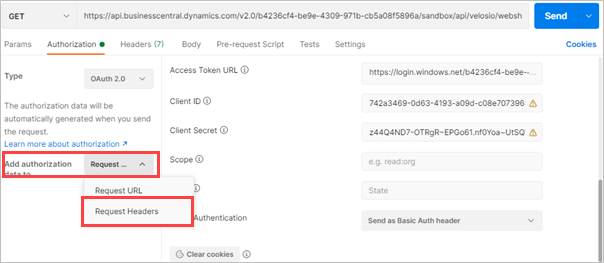
Select Type as OAuth 2.0.
-
Select Request Headers from the Add authorization data to drop-down list.
-
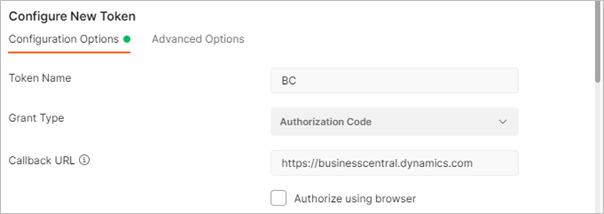
Click Configure New Token.
The Configure New Token screen is displayed.
-
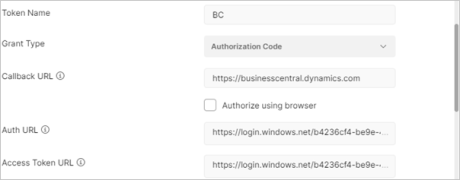
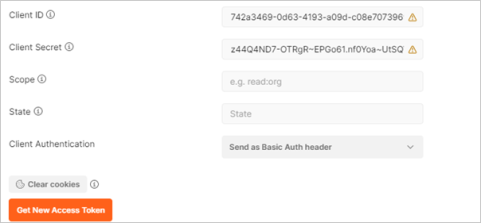
Provide the required values in fields.

Information
-
Token Name - Provide the value entered while App Registration. For example, Business Central.
-
Access Token URL - https://login.windows.net/TenantID<GUID>/oauth2/token?resource=https://api.businesscentral.dynamics.com
-
Client ID - Refer to step 8 for Application (client) id, and provide that value in Client ID field in POSTMAN.
-
Client Secret - Provide the client secret.
-
Scope - Must remain blank.
-
Client Authentication - Select Send as Basic Auth header.
-
-
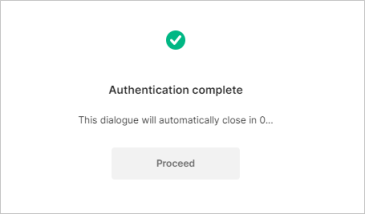
Click Clear cookies and click Get New Access Token.
A success message is displayed.
-
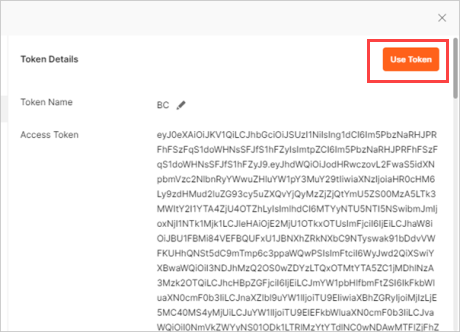
Click Use Token.
|
|
Note Additional configurations are required to procure the Sales Invoice PDFs and post the customer payments in the ERP. |