Authorization Details
To fetch the authorization details of Quickbooks ERP, follow these steps:
-
Click this link to log in to the QuickBooks Online account.
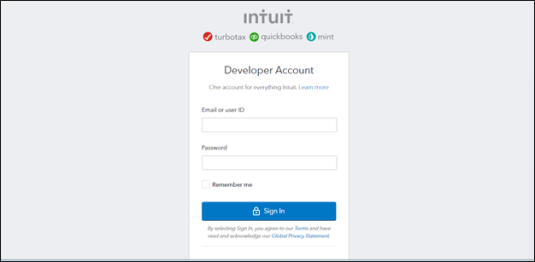
After logging in, the Manage sandbox companies screen is displayed.
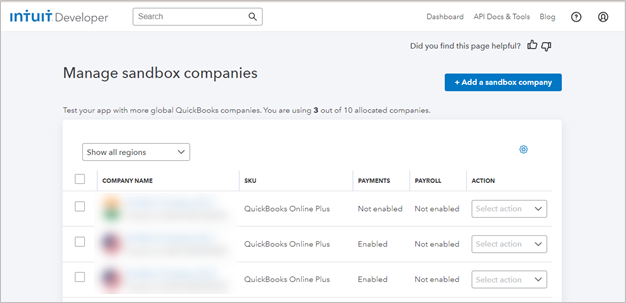
-
From the Manage sandbox companies screen, find the required company ID. In this case, the Company ID is 4620816365203699520.
-
Copy and save the company ID to use it in the authorization section of the integration page.
-
Click Dashboard.
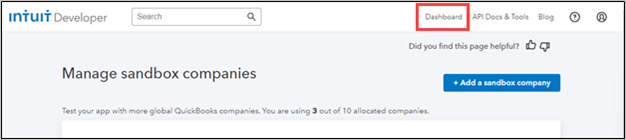
The My Apps Dashboard screen is displayed.

-
If an application is already created, it is displayed in the screen. Click the application that you want to open.

The develop your application page is displayed.
-
Click the Keys & credentials option.
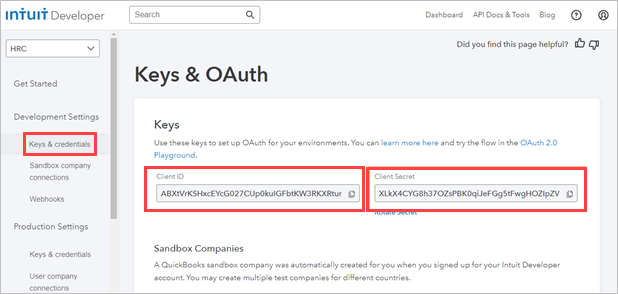
The Keys & OAuth screen is displayed with Client ID and Client Secret details. In this case, the Client ID is ABXtVrKSHxcEYcG027CUp0kuIGFbtKW3RKXRtunbRxgDbYa70A, and the Client Secret is, XLkX4CYG8h37OZsPBK0qiJeFGg5tFwgHOZIpZVQJ.
-
Click OAuth 2.0 Playground to obtain the Refresh token.
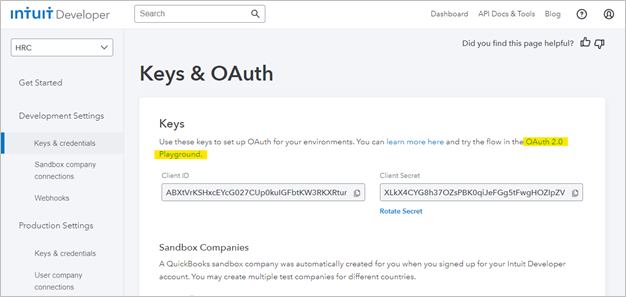
The OAuth page is displayed.
-
Click the Select app drop-down list to view the list of applications.

-
In this case, select Sandbox instance. After selecting the application, Client ID and Client Secret are populated.
-
Scroll down to view the OAuth Settings.
-
Check the box beside com.intuit.quickbooks.accounting.
-
Click Get authorization code.
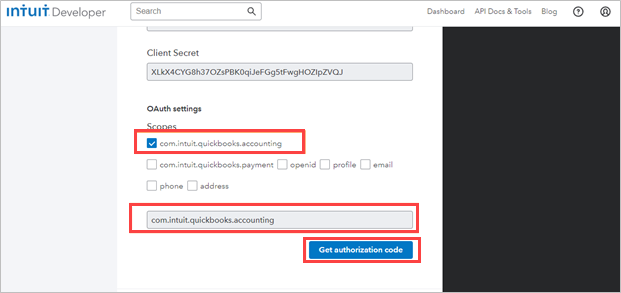
-
Scroll down and navigate to Step 4 to view the Refresh token and Access token.
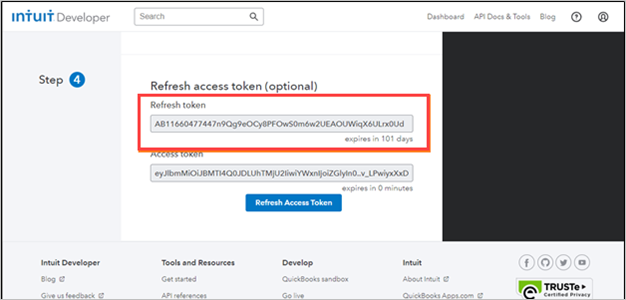
-
Copy and save the Refresh token.
In this case, the Refresh Token is, AB11660477447n9Qg9eOCy8PFOwS0m6w2UEAOUWiqX6ULrx0Ud. This fetches all the authorization details from the ERP.